SmartMove

Frequently Asked Questions

Find answers to common questions about staying safe at work, learning with SmartMove, logging in, dealing with technical issues, and making the most of this site.

Recommended browsers

For the best experience on the SmartMove website and learning resources, use:
Google Chrome | Mozilla Firefox | Microsoft Edge | Apple Safari

Internet Explorer is not supported.

0%

free SmartMove access

SmartMove is free for everyone, giving young and new workers full access to learning resources, safety tips, and interactive training to build confidence at work.

Educators and PCBUs are encouraged to share it with their teams, with support available for login and account help as needed.
Get help

Technical issues

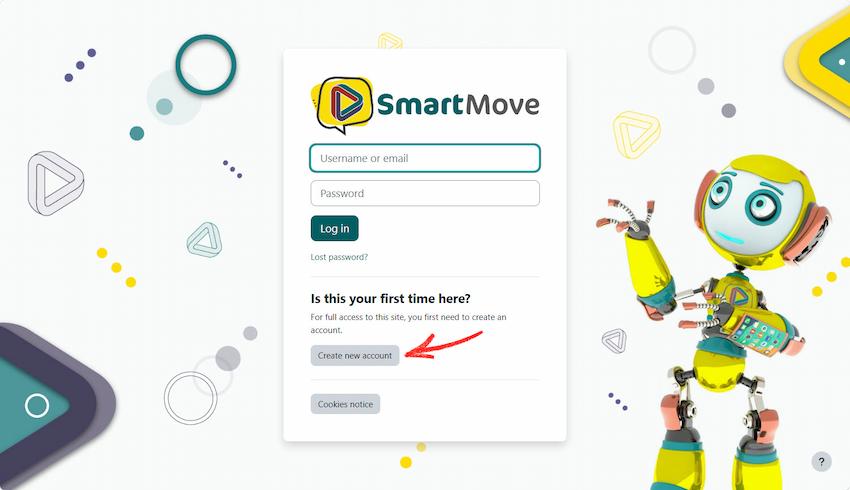
  1. Select Login/Register from the main menu, then select Create new account (See image below.)
  2. Complete the registration form. Required fields are marked with a red exclamation mark (!).
  3. Tip: Your name, school, RTO or business name will appear on your Certificate of Completion exactly as entered.
  4. Select Create my new account.
  5. Check your email for a confirmation message from noreply@mrooms.net (check your spam or junk folder if needed).
  6. Select the confirmation link to activate your account.
  7. Log in and start learning.


SM Login

Check that your username and password are correct. Passwords are case sensitive.

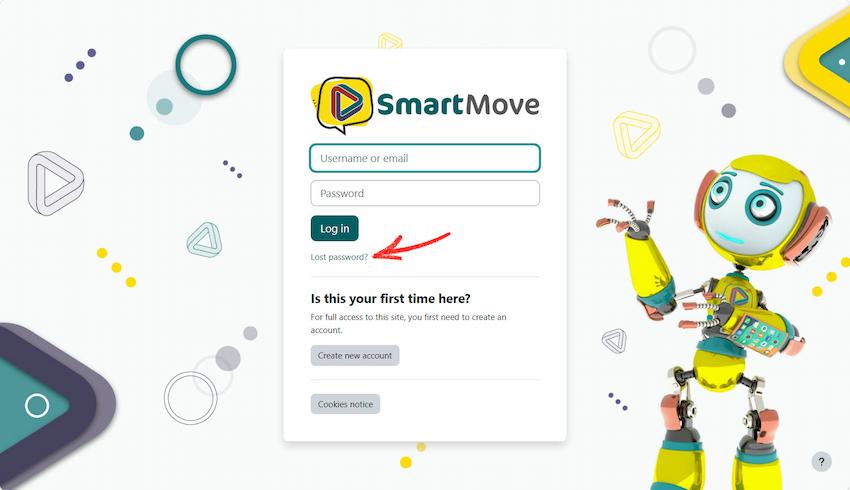
If you’re still unable to log in, select Lost password? to reset your password.

SM Password

Check your junk or spam folder first.

If you’re using a school or workplace email address, your IT administrator may need to allow emails from noreply@mrooms.net.

If you still haven’t received the email or think you entered the wrong email address when registering, please contact us for assistance.

Our modules contain interactive content and may take a little longer to load, particularly on slower internet connections.

If the module doesn’t load after a short time, check your internet connection or try refreshing the page.

Your username, name and email address cannot be changed after registration. If you need to update these details, please contact us.

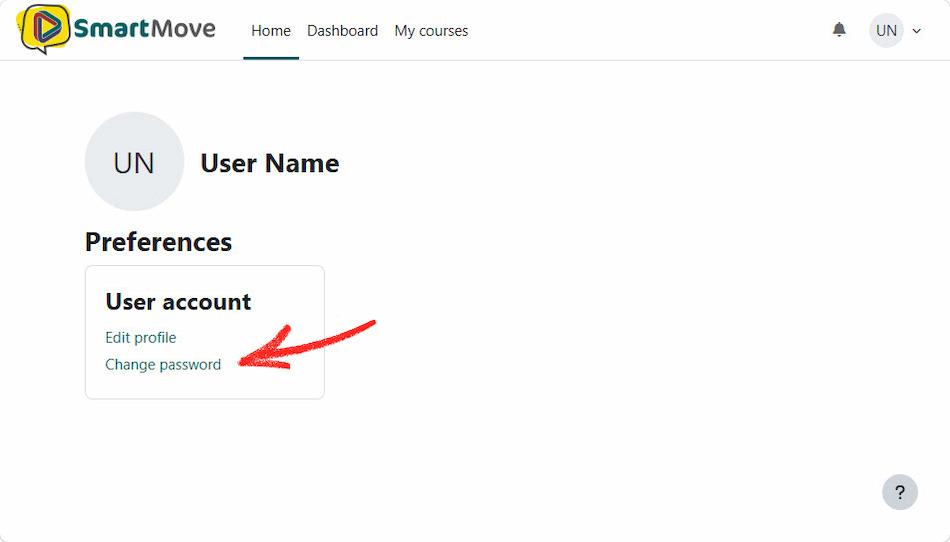
To change your password:

  1. Click your profile icon in the top right-hand corner
  2. Select Preferences from the dropdown
  3. Click Change password and follow the prompts


SM change pass

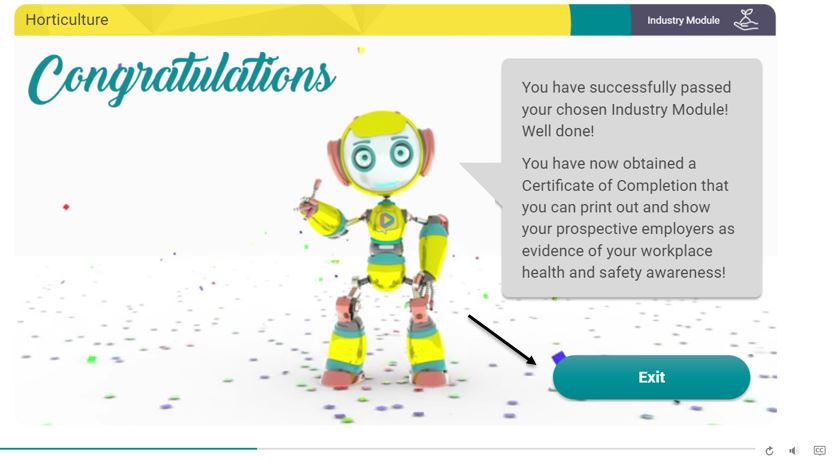
To record your completion:

Select Exit on the final Congratulations slide before closing your browser.

If your certificate is still unavailable, reopen the module, select Resume, return to the final slide, and select Exit.

Also check that you have a stable internet connection.

Exit button

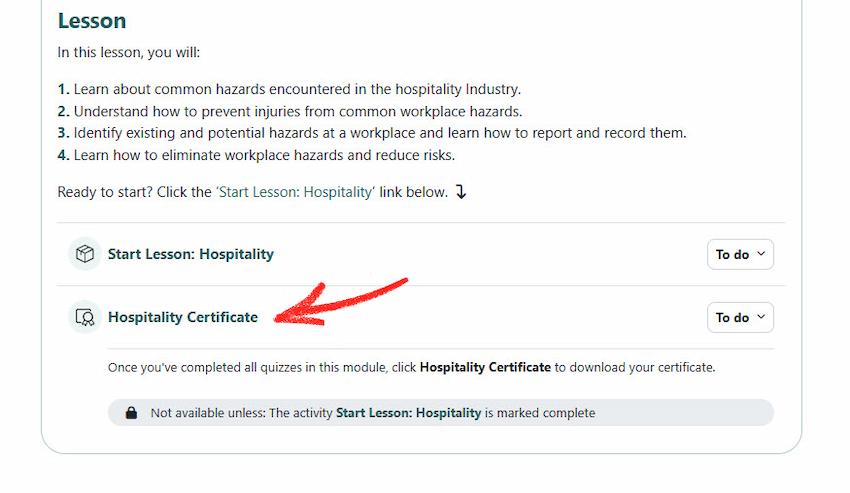
Each Industry Module has its own Certificate of Completion. Your certificate will be available once you have completed the module and achieved 100% in all required quizzes.

On the course page, select Module Certificate to generate, view and download your certificate.


SM cert

Your certificate uses the name you entered when you created your account. As your name can’t be updated in your account settings, please contact us.

We’ll update your details and help you obtain a corrected certificate.

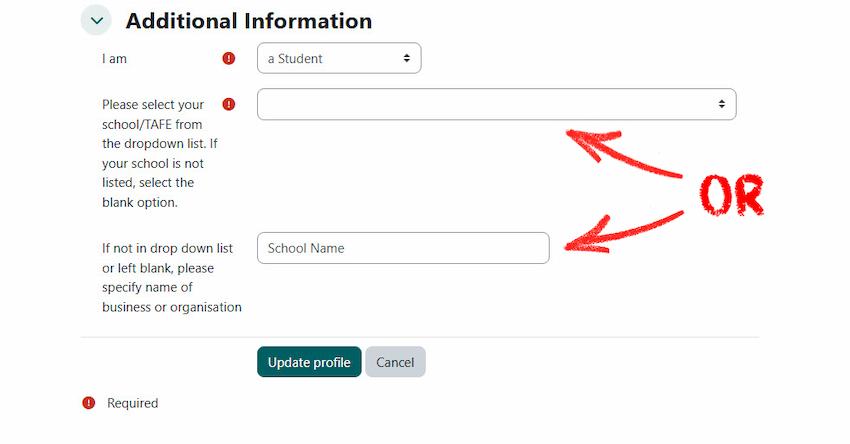
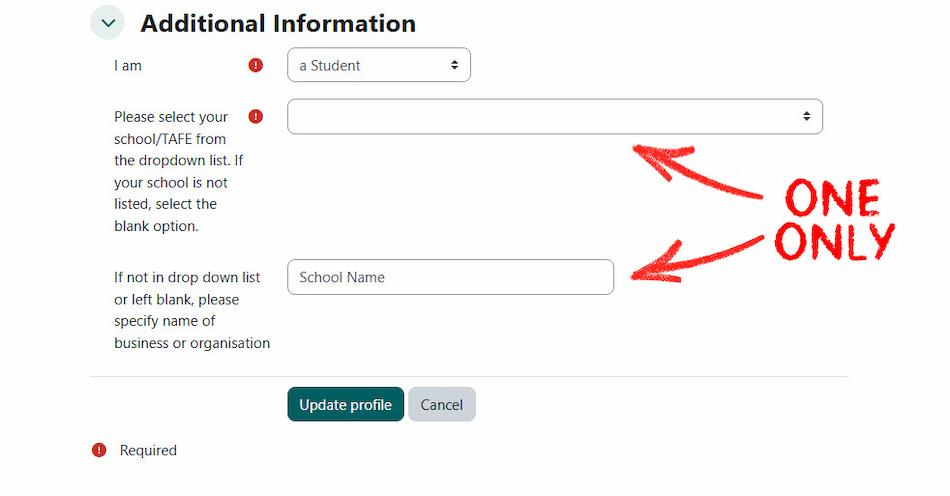
Log in to the learning portal and go to Profile > Edit profile > Additional Information. 

Note: The drop-down list includes WA schools and WA RTOs only.

  • If your school or RTO is listed, select it from the drop-down list.
  • If your school or RTO isn’t listed, select the blank field in the drop-down list and enter the name of your school or RTO in the field If not in the drop-down list field below.

Important: Complete only one of these fields. Leave the other field blank to avoid overlapping text on your Certificate of Completion.

Select Update profile to save your changes.

Note: Your updated school or RTO will appear on any new Certificates of Completion you generate after making the change. Certificates issued before the update will continue to show your previous school or RTO.


SM schools

This happens when both the School/RTO drop-down list and the If not in the drop-down list field have been completed.

  • Log in to the learning portal and go to Profile › Edit profile › Additional Information. Make sure only one of these fields is completed and leave the other blank.
  • Select Update profile, then generate your certificate again. Your certificate will display the correct school or RTO.


Sm overlapping

The General Module must be completed before you can start an Industry Module, but it does not have its own Certificate of Completion.

To receive a Certificate of Completion, you must also complete an Industry Module.

Make sure you have the latest version of Adobe Acrobat Reader installed on your device.

You can download the free version from the Adobe Acrobat Reader (Free Download) page. 

If you’re still having trouble, check that your internet connection is stable and try downloading the file again.

Moving to the current training platform

A new training platform was introduced on 18 June 2026. Accounts from the previous SmartMove training platform were not transferred, so you’ll need to create a new account to access training.

You only need to create an account once. After that, simply log in using your email address and password each time you return.

Any Certificates of Completion you earn on this platform will remain available in your account and can be downloaded at any time.

Yes. You can register on the current training platform using any valid email address, including the one you used on the previous platform.

Please note that training records and certificates from the previous platform are not available in your new account.

We encourage you to complete the course on the current training platform so you can take advantage of its features, including:

  • Downloading your Certificate of Completion at any time.
  • Keeping your certificates and training records together in one place.
  • Accessing refresher training when it becomes available.

If you need a copy of a certificate issued before 18 June 2026, please contact us and provide your first name, last name, and the email address you used on the previous platform.

Please note: Certificates were only issued for Industry Modules, Alternative Learning Module and Information Sessions. The General Module did not include a Certificate of Completion.

On 18 June 2026, the previous platform was replaced with a new system. As the two systems are not compatible, accounts, training records, course progress and certificates issued before this date could not be transferred.

If you need a copy of a certificate issued before 18 June 2026, please contact us.

Refresher training

No. The previous training platform did not support refresher training or training history. When the current platform was introduced on 18 June 2026, all users started with a new training record.

Your first enrolment on the current platform is treated as a new enrolment. Once you have completed the training on the current platform, you will be able to access refresher training when it becomes available.

You must first complete the training on the current platform. Refresher training will become available 6 months after your completion date.

You can enrol in as many different modules and information sessions as you like at any time. Refresher training only applies when you are repeating the same course, module or information session.

No. You can complete refresher training at any time from 6 months after your certification. After each refresher (re-certification), you can complete it again after a further 6 months.

Your workplace, school, training provider or employer may have their own refresher training requirements. Please check with them.

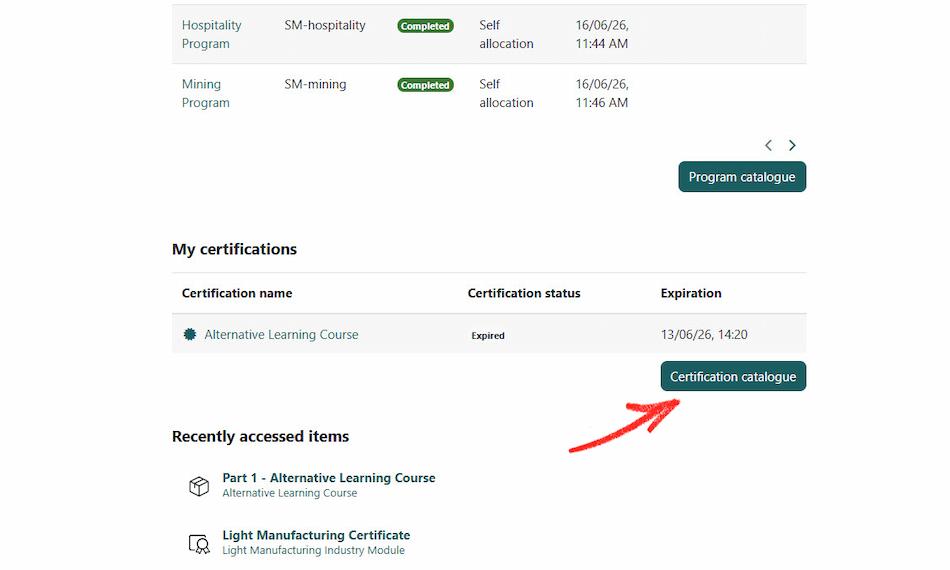
Once refresher training is available, log in to your account and open the Certification catalogue from your dashboard.

Follow the prompts to complete your refresher training.


SM cert cat

A new certificate will be issued and saved to your account. All certificates issued through this platform remain available in your account and can be downloaded at any time.

General enquires

No. Completing the SmartMove Certificate Program does not replace your workplace WHS training or induction.

Your employer (PCBU) is responsible for providing workplace-specific WHS training and induction. You must still complete any training or induction required by your workplace.

No. WorkSafe is not a Registered Training Organisation (RTO) and cannot assess or issue qualifications for units of competency.

This website provides learning resources to support the delivery of BSBWHS201A and workplace health and safety (WHS) training. Your school or RTO is responsible for training, assessment and issuing any qualifications or statements of attainment.

You can attempt each quiz as many times as needed. To complete the course, you must achieve a score of 100%.

Yes. Your progress will be saved if you have a stable internet connection.

When you return, log in and select Resume to continue where you left off.

Yes. You can access the training on most smartphones and tablets.

Your experience may vary depending on your device, screen size, browser and internet connection.

Please use the Feedback Form to share your thoughts or suggestions.

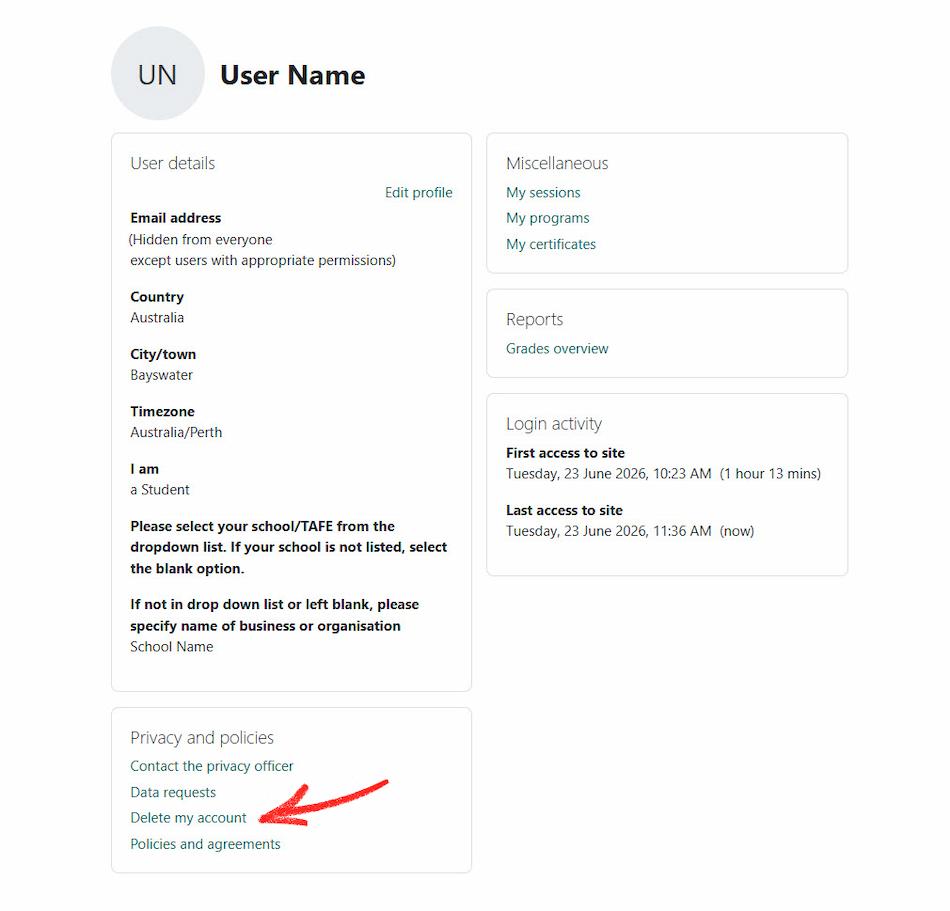
Log in to your account and go to Profile > Privacy and policies > Delete my account to request deletion of your account.

Your request will be processed in accordance with our Privacy Policy.

Note: Once your account has been deleted, your training records and certificates will no longer be available. If you wish to use the platform again, you will need to create a new account and complete the training again.


SM delete

If you have a question or need assistance, please visit the Contact us page on this website.

Email is the preferred contact method and usually provides the fastest response.

Our office is open during business hours, Monday to Friday (excluding public holidays).